



Genie Legacy DVR clock bug information and workarounds
Bulletin ID: 01-2026-clock-bug
Release Date: 30th January 2026
Severity Level: Low
Status: Investigating / Workaround Available / Permanent fix not possible.
Summary
We have identified a hardware/firmware issue affecting certain versions of DVR/NVR . Under specific conditions, this issue may result in not being able to export footage directly from the DVR/NVR after 31/12/2025.
Currently, there are no immediate safety risk. There is a potential for service disruption.
Affected Products
The issue affects the following:
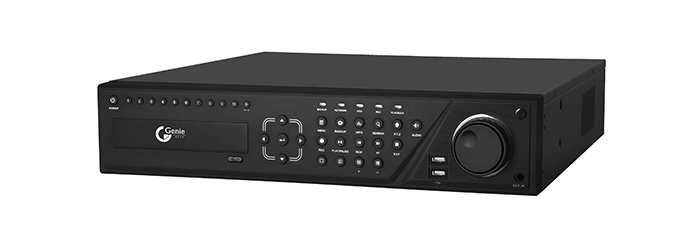
- Product Name: DVR 3.0 series DVR and NVR hardware circa 2010-2013
- Model Number(s): WNVR816 / WNVR832 / WNVR832P / WNVR232 / WAHD41S / WAHD81S / WAHD161S / WAHD162S / WAHD328H.
- Firmware Version(s): v3.4.x only
Products outside of these versions are not affected.
Issue Description
The issue occurs when trying to playback footage after 31st December 2025 directly from the recorder.
Affected hardware will exhibit the following behaviour:
- The recorder calendar may crash back to the live preview screen.
- Playback will not begin.
Other issues do not occur under operating conditions outside of the scenario described above.
Impact
Potential impact includes:
- loss of ability to display the correct time and date or search archived footage directly via the recording device.
No confirmed data loss is associated with this issue.
Workaround
No permanent fix is available due to the technology and age of the recorder; customers may only alleviate the issue by following the workaround steps below:
Solution 1: Playback via P2P Web Interface
Prerequisite: Device version must be 3.3.0 or higher, which supports the NAT feature.
Steps:
Note: If the user’s device is already using NAT, you can directly follow the steps shown in step 4 to search and view the recordings.
1. Connect the device to the internet.
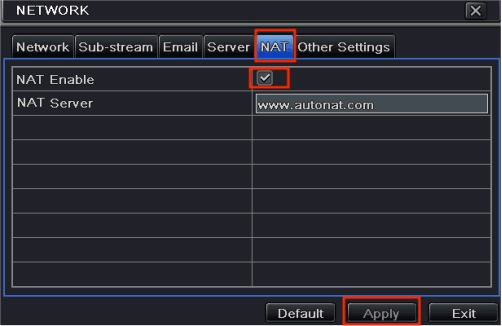
2. Enable the NAT function via the local or web interface: Go to Main Menu > Setup > Network > NAT > NAT Enable.
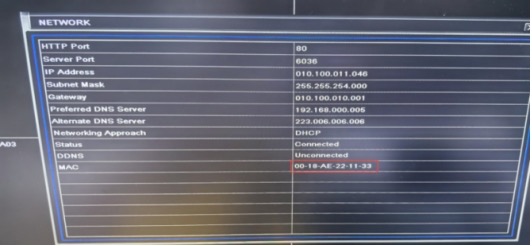
3. Obtain the devices MAC address: Go to Main Menu > Information > Network to check the MAC address of the DVR (view the 12-digit MAC address).
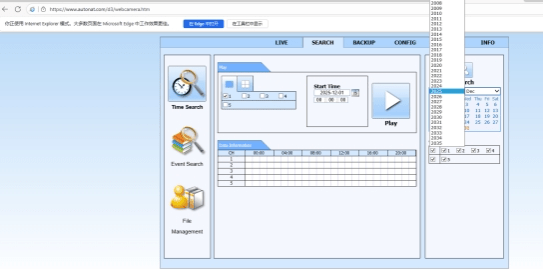
Open a browser, navigate to www.autonat.com, enter the device’s MAC address and password to log into the P2P web interface. Go to Search > Time Search, select the date, and click the “Play” button to begin playback.
Solution 2: Playback via NVMS 1000 Software
Prerequisite: NVMS 1000 software is installed on a computer.
NVMS 1000 Software download link: Contact Genie Technical Support for a link to the required software – [email protected]
Steps:
1. Open NVMS 1000, navigate to Device Management > Add Device. Make sure that all the DVR devices that need to be added have been.
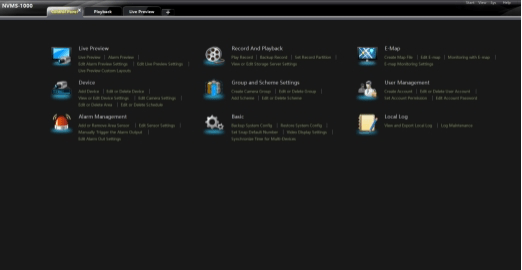
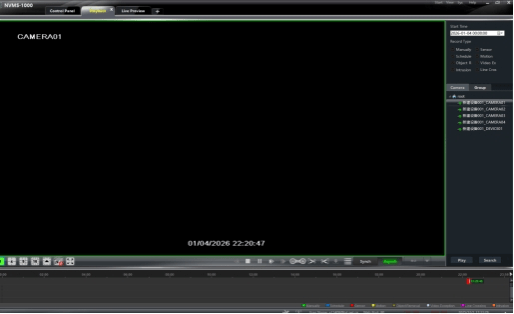
2. Open the Function Panel > Play Record > Video Playback, select the date, and playback recordings.
Solution 3: Playback via Live Playback
Prerequisite: None.
Steps:
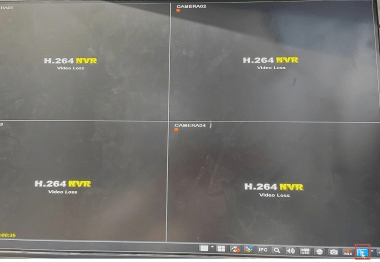
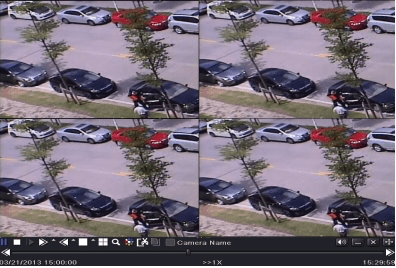
On the device’s Live Preview screen, click the Live Playback button. In the Live Playback interface, recordings can only be played, forwarded, or rewound.
NOTE: These steps have been validated.
Customers are advised to:
- Check for affected products and firmware versions.
- Apply the recommended workaround if applicable.
- Contact Genie to discuss upgrade options.
- Monitor systems for the symptoms described above
No action is required for products not listed as affected.
Support & Contact Information
If you experience this issue and require further advice, please contact:
- Support Portal: https://genieproducts.co.uk/support
- Email: [email protected]
- Phone: +44 1707 330 541 – Option 2
Please reference Bulletin ID: 01-2026-clock-bug when contacting support.
Revision History
| Version | Date | Description |
| 1.0 | 30/01/2026 | Initial release |